The alarm you can't snooze or turn down
No snooze button, volume that jumps back up, a come-back ping if you force-quit, and backup alarms that keep going until your mission is done.
Key takeaways
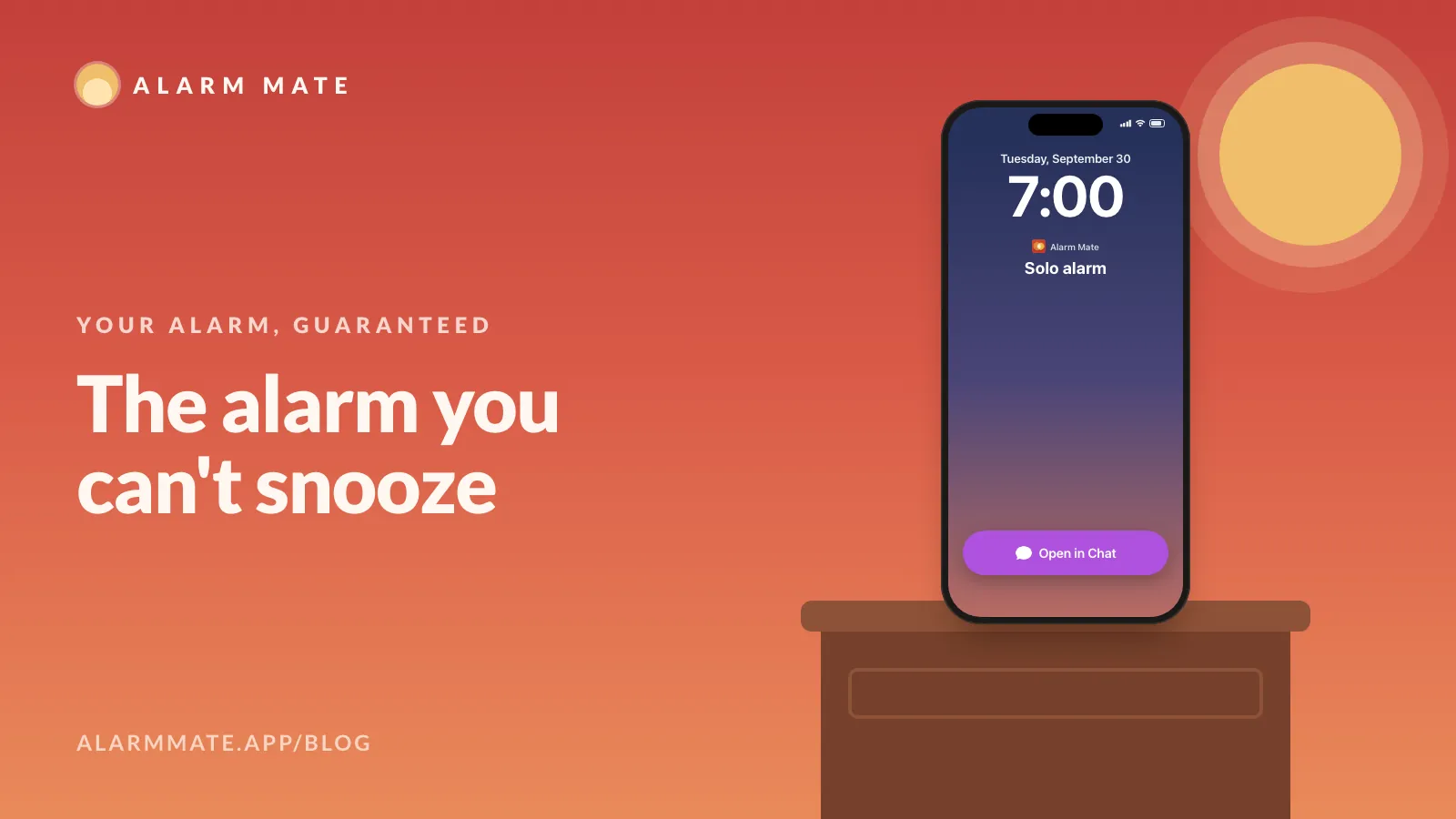
- Alarm Mate's lock-screen alert has one button, Open in Chat, and there is no snooze anywhere in the app.
- While the app is open and the alarm rings, turning the volume down doesn't stick: it jumps straight back up.
- Force-quitting doesn't help: the alarm is scheduled with AlarmKit and keeps ringing until you open the app.
- The only way out is finishing a mission, drawn at random from the ones you picked, and every mission is free.
- It needs iOS 26 or later, it's in English only, and there's no Android version.
On this page 9 sections
Alarm Mate has no snooze button, and turning the volume down while it rings doesn’t work: it jumps straight back up. Force-quit the app and it asks you to come back, and backup alarms keep ringing until you finish your wake-up mission.
Alarm Mate is an iOS 26 alarm app built on Apple’s AlarmKit.
I have switched off more alarms asleep than awake. I’m fairly sure the half-asleep version of me is a better negotiator than the awake one: he knows every button, every swipe, and exactly how long nine minutes feels.
So when we built Alarm Mate, the spec for the alarm itself fit on one line. It stops when you’re up, not when your thumb finds something to press.
This page is the list of exits we closed, and the single one we left open. If nothing has ever woken you up, stay.
No snooze button, anywhere
When an Alarm Mate alarm rings on the lock screen, the alert has exactly one button: Open in Chat. There is no Snooze next to it, no small one hidden in settings, and no “allow 3 snoozes” switch, because there is no snooze at all.
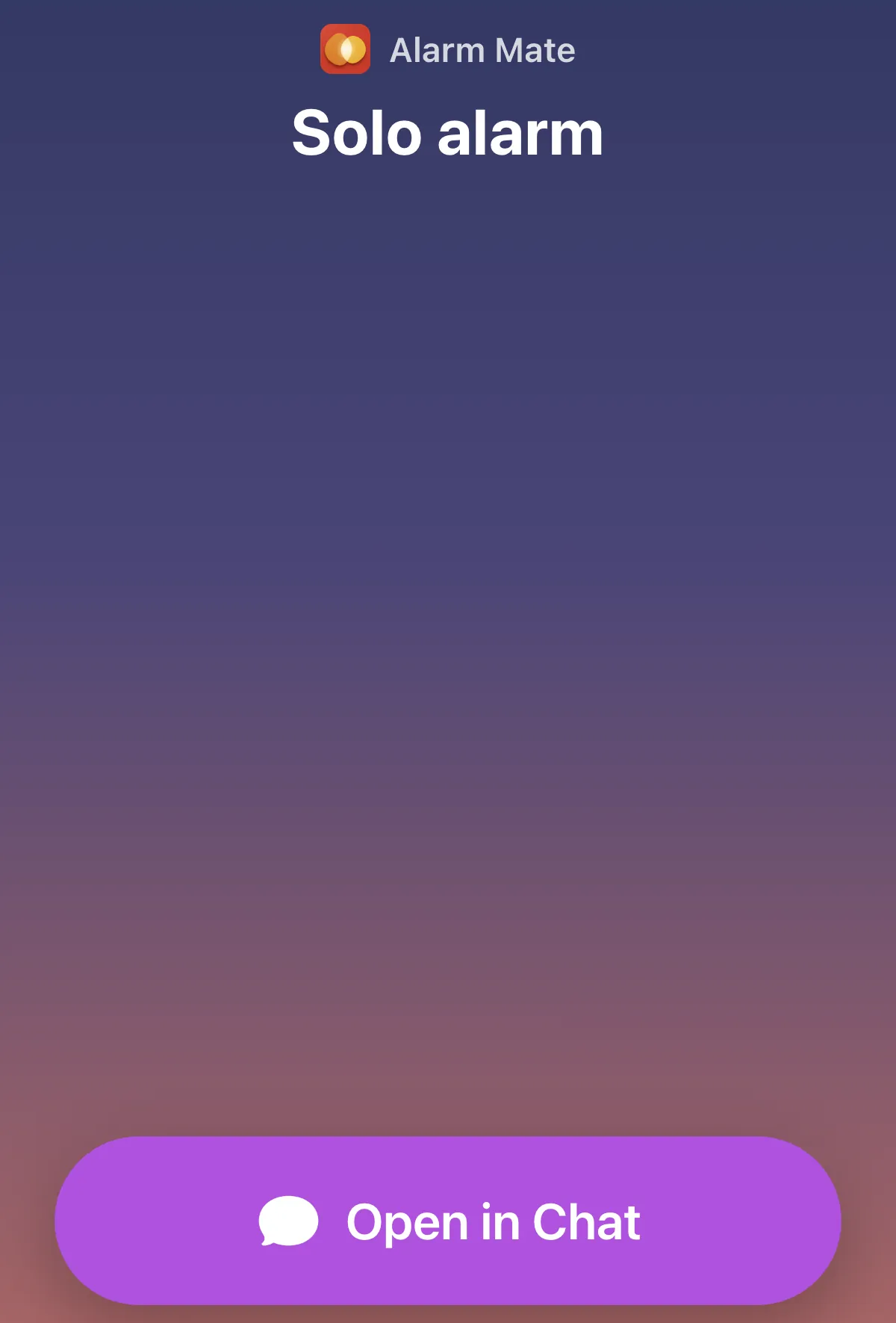
The app says it plainly on the How it works screen: “Your alarm has no snooze-and-forget off switch.”
That sounds harsh until you remember what snooze actually is at 6:40 am. It’s a contract you sign with yourself while you’re the least qualified person in the room to sign anything. We removed the pen.
Turn it down and it turns itself back up
Half-asleep hands go for the volume buttons first; mine certainly do. So while the app is open and the alarm is ringing, the volume belongs to the alarm.
Press volume down and you’ll watch the volume bar bounce straight back up. The alarm plays at full volume, and it keeps playing at full volume.
This is the part people find rude the first morning and useful by the third. You can’t bargain it down to a murmur and drift off under it, which is exactly what a lot of us do with a normal alarm without ever quite deciding to.
Force-quitting doesn’t get you out
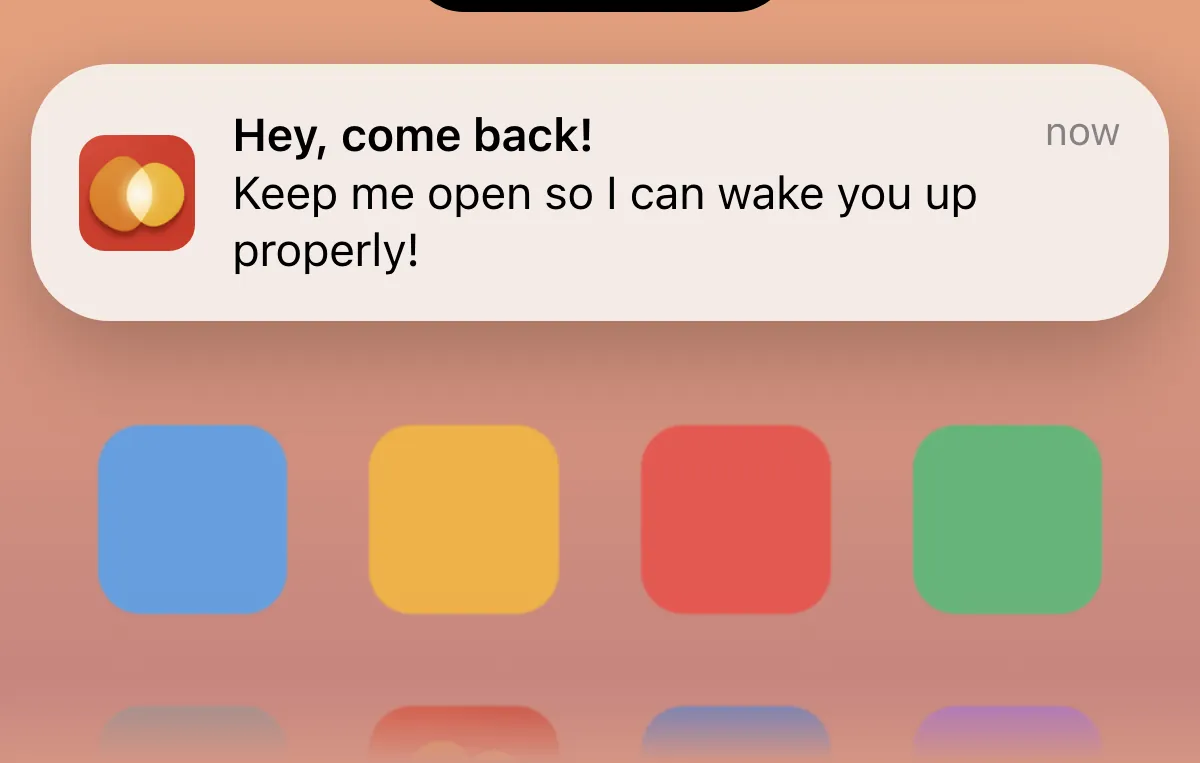
The next trick in the book is swiping the app away in the app switcher. Try it and you get a notification:
Hey, come back! Keep me open so I can wake you up properly!
Alarm Mate, after a force-quit
Ignore the note and it doesn’t matter much, because the alarm was never living inside the app to begin with. Alarm Mate schedules its alarms with Apple’s AlarmKit, and Apple’s own AlarmKit FAQ says scheduled alarms “persist regardless of app or device state changes”, including a force quit, a reboot or a crash.
When the alarm time comes, it rings. And a ringing alarm after a force-quit doesn’t stop until you open the app.
We tried it on ourselves. On 19 September 2026 we force-quit the app ahead of a 12:15 Match alarm. The alarm rang through AlarmKit and kept ringing; we opened the app twenty minutes later, landed on the mission and finished it.
The side buttons open the app, not an off switch
Here’s the bit most people don’t know about alarm apps on iOS 26. Apple’s AlarmKit FAQ says: “Any physical button that causes a reaction from AlarmKit will stop the currently alerting alarm.”
Press volume or power while an AlarmKit alarm rings, and that alert ends. Developers have been asking Apple about it because their users switch alarms off by accident.
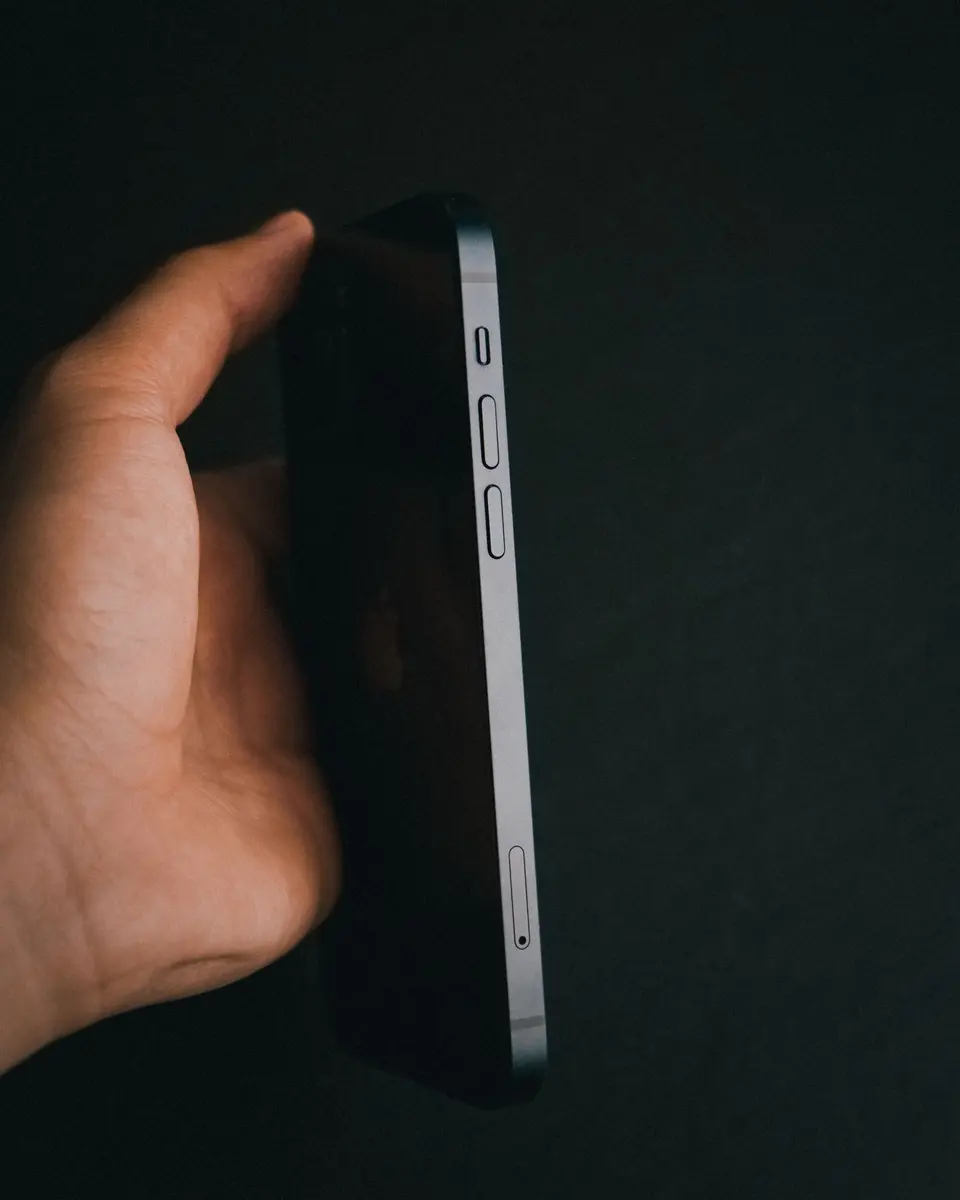
We use that moment differently:
- On the lock screen, a press of the volume or side button opens Alarm Mate, straight into your mission, with the sound.
- If your phone is unlocked when you press, backup AlarmKit alarms carry on ringing, one after another, until the mission is done.
In our own testing on 15 September 2026, a 22:30 Match alarm was left completely alone. At 22:47 it was still ringing on the lock screen. One press of the side button, and the app opened itself.
The one way out: finish your mission
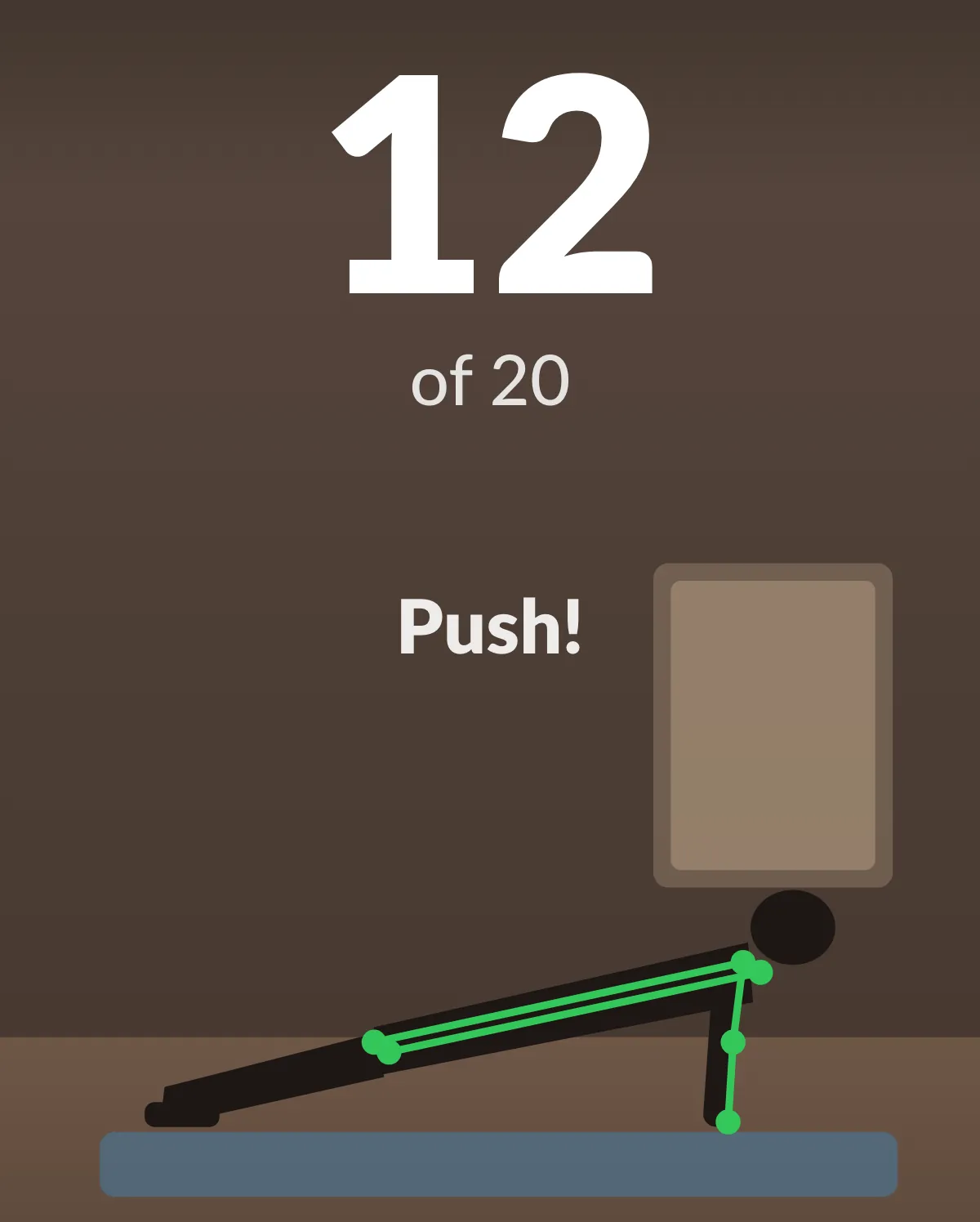
When you set an alarm you pick your missions, as many as you like, and one of them is drawn at random when it rings. Do it and the alarm stops. That’s the only exit, on purpose.
There are 14 missions, from walking away from your bed to push-ups to math, and every mission is free. The full list, and why the random draw matters, is in alarm missions explained.
Some no-snooze apps make you fetch a code from a second device or scan a sticker in another room. Ours doesn’t need anything but the phone that’s ringing, and because the mission is drawn at random, there’s no single routine for half-asleep you to memorise.
One more layer: another person
Everything above is friction, and friction has one known weakness: given a few weeks, half-asleep you learns the way around it. So there’s one more layer, and it isn’t a setting.
Set a Match or Friends alarm and someone else’s phone rings at the same minute as yours. You both land in a lobby, and each of you sees what the other is doing.
If you’re Sam, your buddy’s screen says “Sam is still asleep.” until you open the app, then “Sam just woke up and opened the app.” If you’re the one still in bed, your buddy can hold down RING SAM’S ALARM once that morning, and your phone gets a loud “They’re up, you’re not. Move.”
Going back to sleep is a lot less comfortable when someone is watching your status line. It’s optional, and the alarm is just as stubborn without it. Match gives registered accounts 3 free matches; how the pairing works is in how to find a wake-up buddy.
Silent mode, Focus, music and phone calls
AlarmKit alarms are real alarms in iOS’s eyes. Apple’s WWDC25 session puts it simply: when an alarm fires, “the alert breaks through the silent mode and the current focus.” The FAQ adds that there’s no Focus mode AlarmKit can’t break through.
The one condition is permission: when you first set an alarm, the app asks for alarm access. With it, the New Alarm screen says “Rings on silent, Do Not Disturb, even if you force-quit.”
Two things people ask about, both from our own testing on 19 and 20 September 2026:
- Music. With Spotify playing, the alarm came in over the music at full volume. Tested twice, passed twice.
- Phone calls. A WhatsApp video call arrived while an alarm was ringing. The alarm dipped during the call and came back when the call ended; it didn’t use the call as a way out.
The long version, including what still breaks AlarmKit, is in do third-party alarms ring on silent?. If your iPhone alarm isn’t going off at all, start with the iOS 26 checklist.
Who this is for, and who it isn’t
It’s for heavy sleepers. People who sleep through the Clock app, who have woken up to a phone showing “Alarm” and no memory of touching it, or who set six alarms and snooze all of them. If you’ve beaten every alarm you’ve owned, this one is built to be annoying enough to win.

It isn’t for people who like a gentle snooze. That’s a legitimate way to wake up, and the research on snoozing is kinder than its reputation (we go through it in the snoozing post). If that’s you, the free Clock app is a fine alarm.
If you share a bedroom, know what you’re signing up for. Full volume means full volume for everyone in the room, until you’re up and doing your mission.
What to check before you install: Alarm Mate needs iOS 26 or later, it’s in English only, and there’s no Android version. Solo alarms and every mission are free.
If you want to compare it with other alarms for deep sleepers, the untouched-alarm test we use, and what each rival promises, are in alarm apps for heavy sleepers. Alarm Mate is on the App Store if you want to see how long your half-asleep self lasts against it.
FAQ
Can I snooze at all?
No. There’s no snooze button on the lock screen, none in the app, and no setting to add one.
What if I’m sick and don’t want it tomorrow?
Turn the alarm off in the app before it rings, the same way you’d turn off any alarm. Once it’s ringing, the mission is the way out, so if you’re under the weather for a few days, put an easy mission like Tap the Button in your list.
Does it ring on silent?
Yes, once you’ve allowed alarm access. It also rings through Do Not Disturb and every other Focus mode, because it’s scheduled with Apple’s AlarmKit.
Does it still ring if I force-quit the app?
Yes. You get a “Hey, come back!” notification, and the alarm rings anyway at its time and keeps ringing until you open the app and finish your mission.
Sources
- Apple Developer, AlarmKit FAQ (persistence after force quit, Focus modes, physical buttons)
- Apple Developer, Wake up to the AlarmKit API, WWDC25 session 230
- Apple Developer, AlarmKit documentation
- Apple Developer Forums, AlarmKit volume buttons thread
- Apple Support, How to set and change alarms on your iPhone
Tomorrow morning, don't do it alone.
Alarm Mate is on the App Store for iPhone. Solo alarms are free, and so is every mission.